Views, clicks, engagement trends, and detailed widget performance. You can now track it all directly from your Mirror App dashboard.
Chances are, you've already added an Instagram Feed to your homepage, found the perfect way to display customer reviews, or even created an entire section dedicated to social content.
But do you know what happens next?
Do visitors explore more posts? Click through to your social profiles? Read your reviews? And which widgets actually catch their attention?
We've introduced Widget Analytics to help you find out.
Now you can see how visitors interact with your widgets, follow engagement trends, and make more informed decisions about the content you display on your website.
Your widget performance, right on your dashboard
When you open My Widgets, you'll find a new Analytics overview with three key metrics:
- Views: How many times your widgets have been viewed.
- Unique Clicks: The number of unique visitor clicks recorded.
- Click-through Rate (CTR): The percentage of widget views that resulted in unique clicks.
You'll also see how these numbers have changed compared with the previous period.
A rise in views might mean more people are encountering your content. An increase in CTR could suggest that visitors are finding more reasons to interact with it.
Want to explore the details? Click View Report to open your full analytics dashboard.
See how engagement changes over time
A single number can tell you what happened. Looking at how it changes over time is often much more useful.
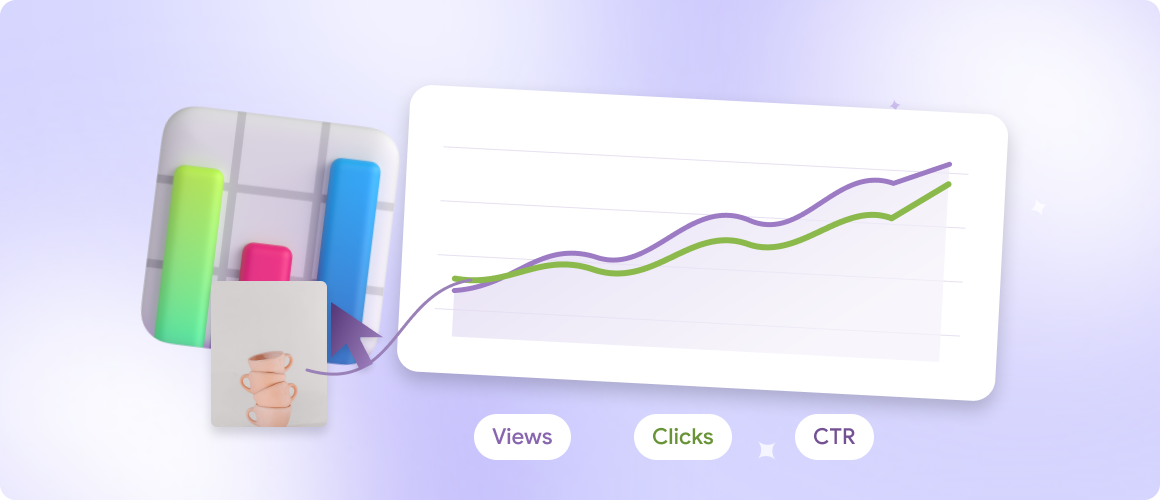
The Views & Clicks Trend chart brings your traffic and engagement data together, so you can see how visitors respond to your widgets.
Explore the last 7, 30, or 90 days, or select a custom date range. You can also filter results by widget type to focus on specific content.
Imagine you've just updated your Instagram Feed with new product videos. A few days later, you notice that views have stayed fairly consistent, but clicks have increased.
That's worth investigating. Your new content might be encouraging more visitors to interact, even though the number of widget views hasn't changed much.
Of course, a graph alone can't explain why something happened. But it can show you where to look.
Find out what visitors actually do
A click is a useful signal. Knowing what someone clicked makes it much more interesting.
Widget Analytics goes beyond basic views and clicks to show you different types of visitor interactions.
Depending on the widget, you can track:
- Total Clicks: All recorded click interactions.
- Post Clicks: Clicks on individual pieces of content.
- Social Clicks: Clicks leading to social platforms.
- Load More Clicks: How often visitors choose to reveal additional content.
- Average Time to Click: How long visitors take to interact.
- Scroll Depth: How far visitors explore the content within a widget.
These details can change how you think about your website content.
Take a reviews widget, for example.
If visitors frequently click Load More, they may be interested in reading beyond the first few testimonials. That's useful to know when deciding how many reviews to show initially or which layout to use.
Or consider an Instagram Feed. If people regularly click through to social profiles, the feed may be doing more than adding visual interest to your page. It could be helping visitors discover your brand elsewhere.
Not every click has the same meaning. Now you have a better way to understand the difference.
Compare performance across your widgets
If you're managing several widgets, checking each one individually can quickly become a chore.
The Widget Performance table brings everything together in one place, with metrics such as views, unique clicks, CTR, total clicks, and more detailed engagement indicators.
You can compare individual widgets, sort metrics, and see performance trends without having to piece the information together yourself.
Perhaps your Google Reviews widget receives fewer views than your Instagram Feed but has a higher CTR. Or maybe visitors explore more content in one feed than another.
Those differences don't automatically tell you which widget is better. After all, a reviews widget and a social feed can serve very different purposes.
But they can help you make better decisions about content, layout, and placement.
Keep an eye on your view limits
Your analytics also show how many widget views you've used against your plan's allowance and when that allowance resets.
If your website starts attracting more traffic, you can monitor usage alongside engagement without digging through your account settings.
It's a small detail that becomes particularly useful as your audience grows.
Export your data when you need it
Whether you're preparing a client report, reviewing a campaign, or sharing results with your team, your analytics shouldn't be stuck inside a dashboard.
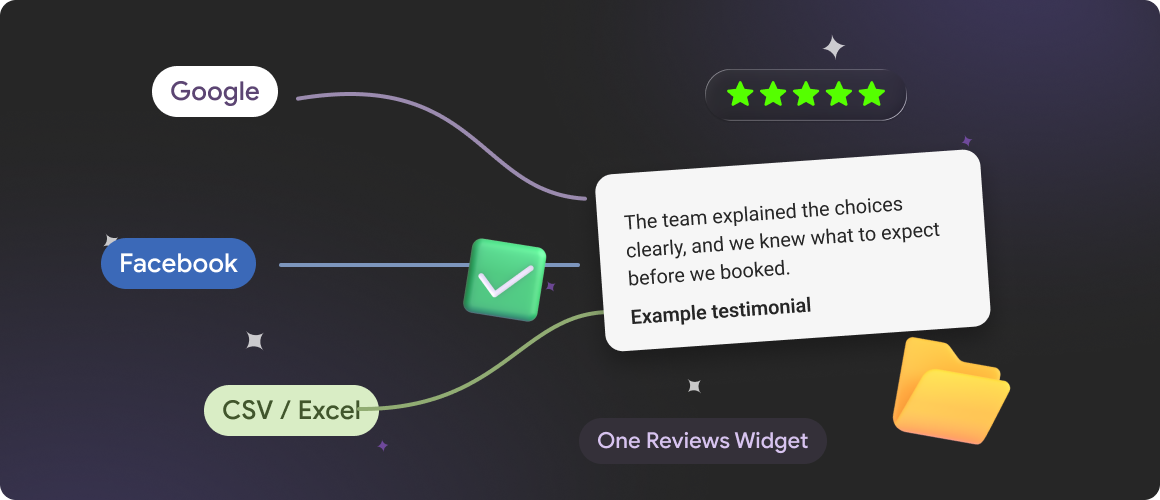
You can export reports in PDF, Excel (XLSX), or CSV format.
Choose a PDF for a quick overview or use a spreadsheet format when you want to work with the numbers in more detail.
For agencies managing multiple websites, this makes it easier to include widget performance in regular client reporting.
Better insights for what comes next
There's no single number that defines a successful widget.
For an Instagram Feed, you might care about clicks through to your social account. For customer reviews, you might want visitors to explore more testimonials. For a product-focused feed, interactions with individual posts may matter more.
What matters is understanding whether your content is helping visitors do what you intended.
That's what we've built Widget Analytics to make easier.
The next time you're deciding whether to change a layout, feature different posts, or move a widget further up the page, you'll have something more useful than a hunch.
Ready to see how your widgets are performing?
Open your Mirror App dashboard, find the Analytics overview, and click View Report to explore your data.